data analysis
1. Description
data_analysis is a command-line tool for performing data quality checks, calculations, search operations, transformations, and file operations on text-based data files. It runs independently from any directory with no external dependencies.
Typical run flow: Choose run mode → Choose file → Enter header/footer rows → Choose category → Choose activity → Enter inputs → Confirm → Run → Review result
2. Starting the Tool

The data_analysis tool can be run from any directory without any dependency. The username is expected for logging and querying purposes.
3. Run Mode Selection

Select how much system resources the tool should use during processing. Choose based on how fast you need results versus how much load you want on the server.
| # | Option | Description |
|---|---|---|
| 1 | Rabbit Mode | Uses maximum resources available in the system. Best when you want faster processing. |
| 2 | Tortoise Mode | Uses minimum basic required resources. Best when you want lower system usage. |
4. File Selection
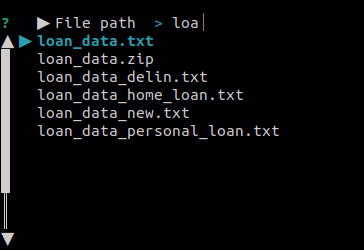
Choose the input file you want to work on. You can type the path directly or use the file picker suggestions. There is no limitation to absolute or relative path.
5. Delimiter Detection

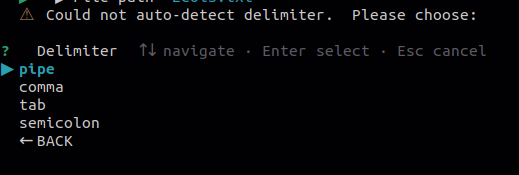
The delimiter of the txt file is automatically detected. If auto-detection fails, you will be prompted to manually select the delimiter from the options shown below.
6. Header and Footer Counts

Tell the tool how many rows at the top and bottom of the file are not actual data. This ensures those rows are excluded from all calculations and operations.
| # | Option | Description |
|---|---|---|
| 1 | Header rows | Rows at the top of the file that should not be treated as normal data. |
| 2 | Footer rows | Rows at the bottom of the file that should not be treated as normal data. |
Example: If the first row contains column names and the last 2 rows contain summary text, enter 1, 2. If there are no header and no footer rows, enter 0, 0 or just press Enter.
7. Main Menu
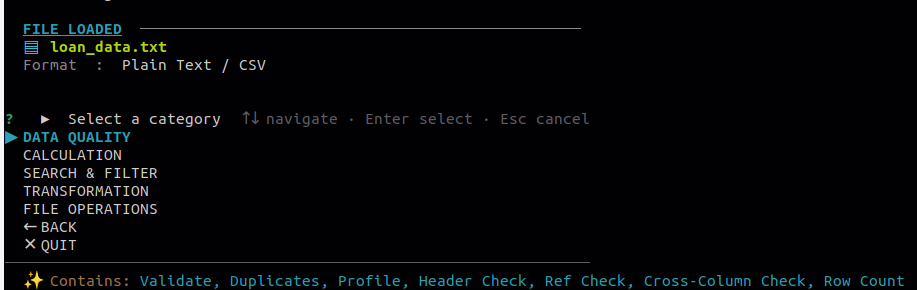
For each menu category, all available sub-options are displayed. The menu is categorized based on similar operations that can be applied to the file.
7.1 Navigation Keys
| # | Option | Description |
|---|---|---|
| 1 | Up / Down | Navigate between options or select an option. |
| 2 | Enter / ALT + Enter | Confirm column selection or file selection. |
| 3 | Enter | Confirm multi-column selection. |
| 4 | Esc | Move one step backwards. |
| 5 | Backspace / Delete | Clear or remove input. |
7.2 Writing Output
Many calculations or validations can be written to an output file by selecting the ✎ Write to a file option and selecting a file path.
7.3 Column Selection Behaviour
- If a header is passed and is correct, columns can be fetched via dropdown.
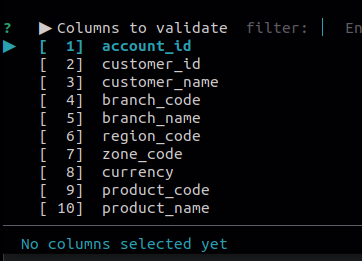
- If a header is passed but data is wrong, or if no header is passed, column numbers are expected from the user.

8. Data Quality
8.1 Column Validation
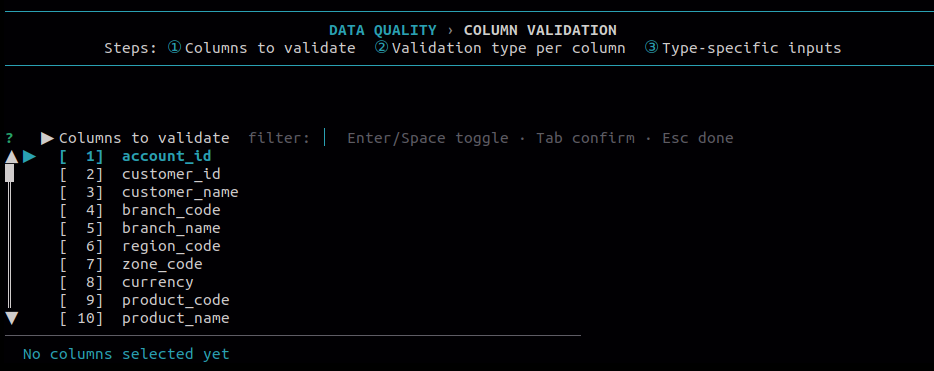
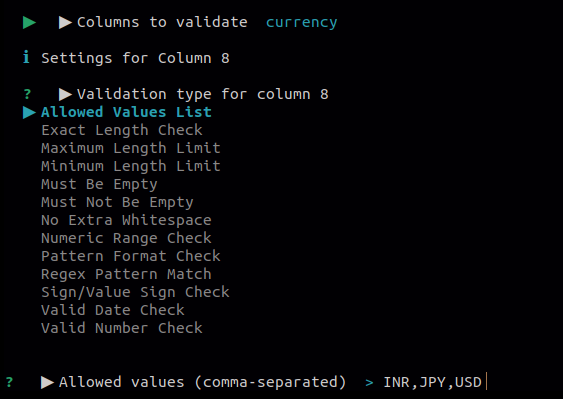
Use this to check whether values in selected columns follow expected rules. Each column can be validated against one or more rule types, and any failing rows are reported.
Available validation types:
- date
- format
- allowed values list
- exact length
- maximum length
- minimum length
- must not be empty
- must be empty
- valid number
- sign check
- numeric range
- regex pattern
- no extra whitespace
8.2 Column Count Check
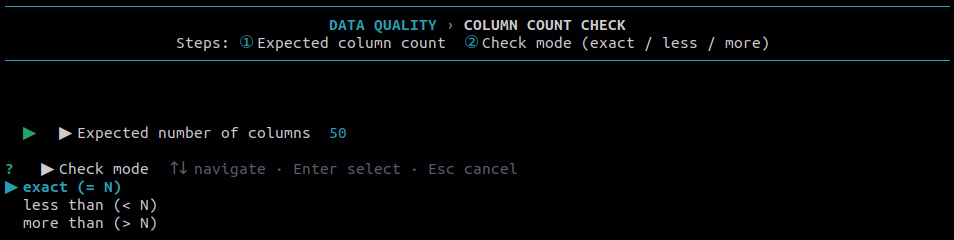
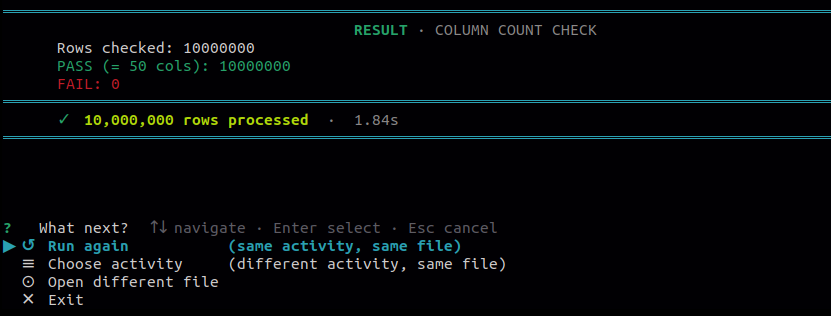
Use this to check whether every row in the file has the expected number of columns. Useful for catching malformed rows where delimiters are missing or extra.
| # | Option | Description |
|---|---|---|
| 1 | Exact | Row must have exactly the expected number of columns. |
| 2 | Less than | Flags rows that have fewer columns than expected. |
| 3 | More than | Flags rows that have more columns than expected. |
8.3 Duplicate
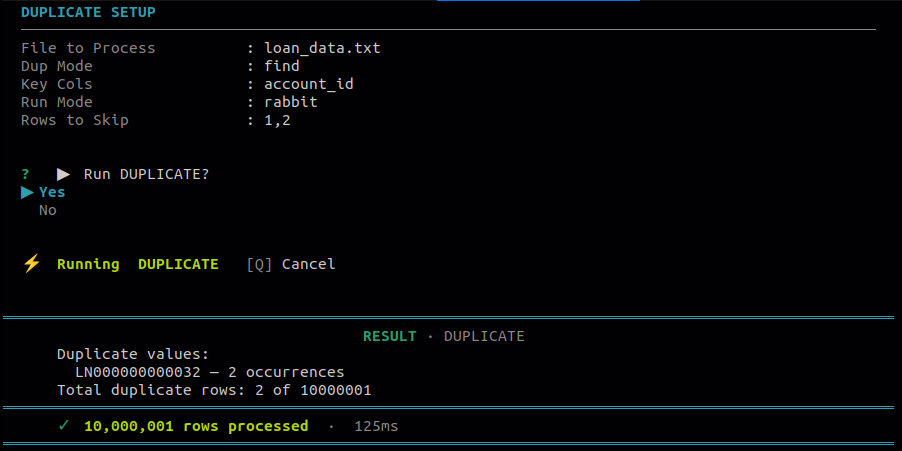
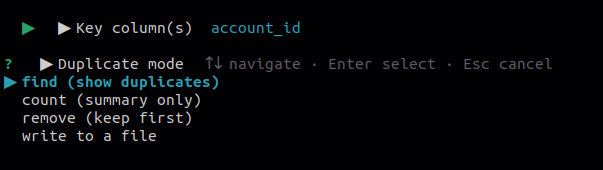
Use this to detect duplicate rows based on one or more key columns. Provides four options depending on whether you want to view, count, remove, or extract the duplicates.
| # | Option | Description |
|---|---|---|
| 1 | Find duplicates | Displays all rows that are duplicated based on the selected key columns. |
| 2 | Count duplicates | Returns the total count of duplicate rows found in the file. |
| 3 | Remove duplicates | Removes all duplicate rows and writes the distinct records to an output file, keeping the first occurrence of each. |
| 4 | Write to a file | Writes only the duplicate records to a separate output file for review. |
8.4 File Profile
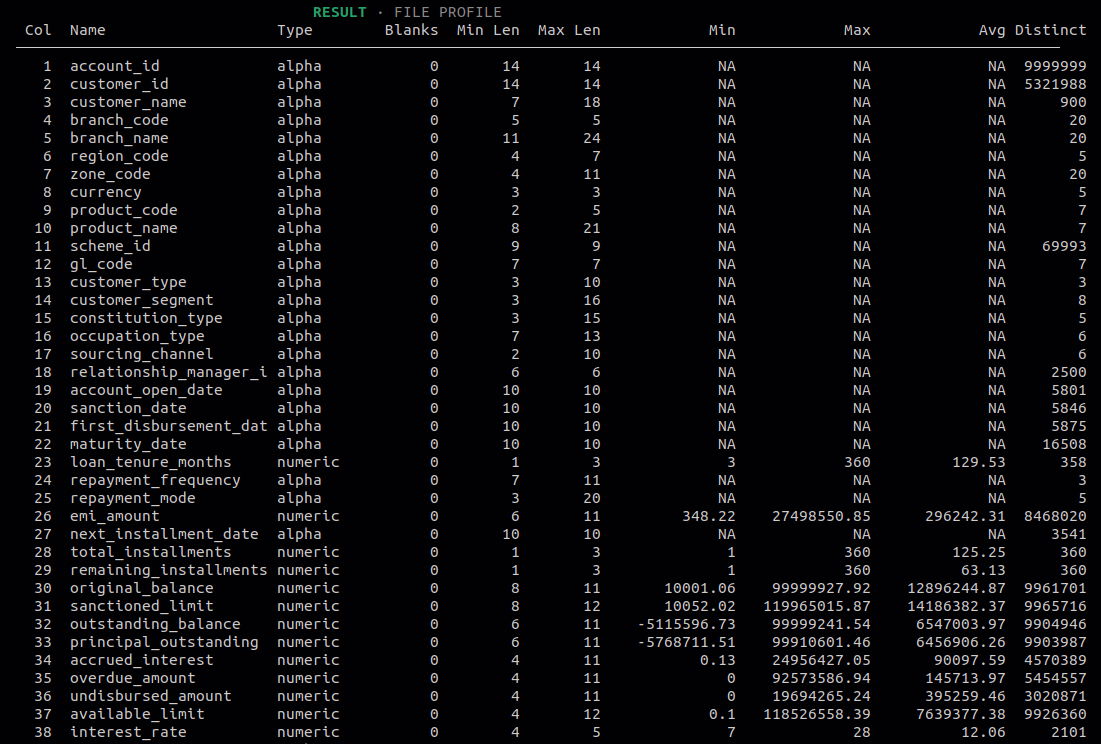
Use this to get a column-level summary of the entire input file. Helps you understand the shape and quality of your data before running any operations on it.
Information shown per column:
- Blanks
- Min
- Max
- Average
- Distinct values
- Detected type
8.5 Cross-Column Comparison
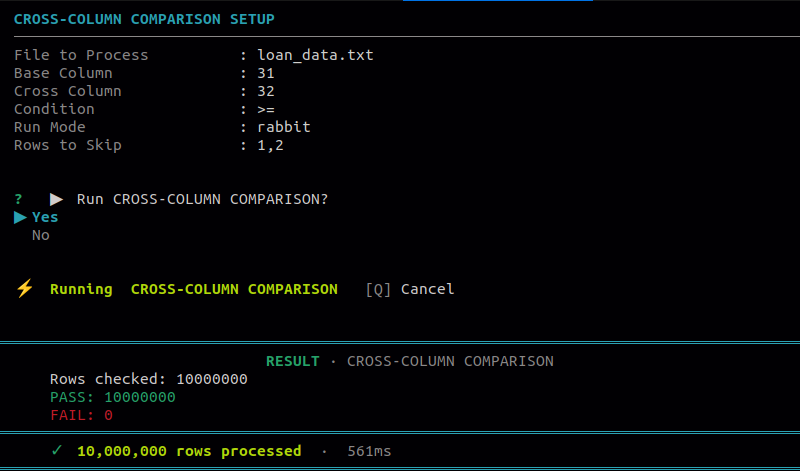
Use this to compare values across two numeric columns within the same file. Useful for validating relationships between columns, such as ensuring one value is always greater than another.
Operators available:
- Greater than
- Less than
- Equal to
- Greater than or equal to
- Less than or equal to
9. Calculation
9.1 Sum
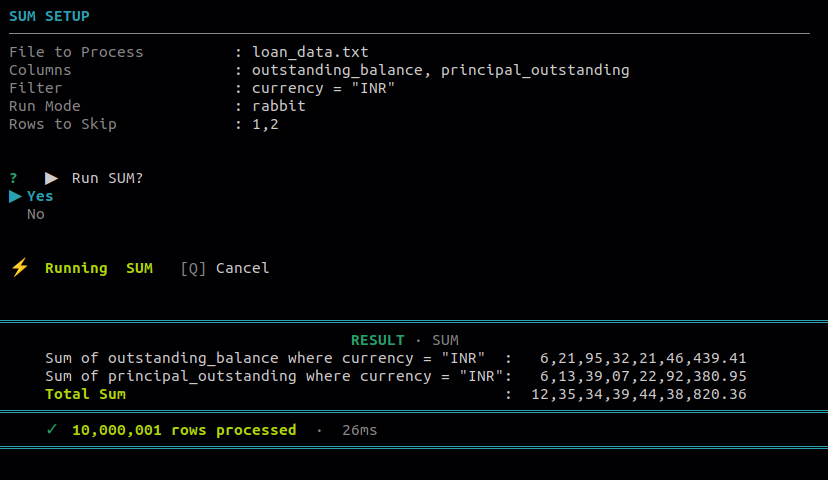
Use this to total one or more numeric columns across all rows or a filtered subset. You can narrow down which rows to include using column-value filters before summing.
| # | Option | Description |
|---|---|---|
| 1 | Optional filter | Choose column(s) and values to include only matching rows. Conditions: equal to, not equal to. |
| 2 | Sign options | Control which values to include: all values, positive only, negative only, or absolute values. |
9.2 Group By
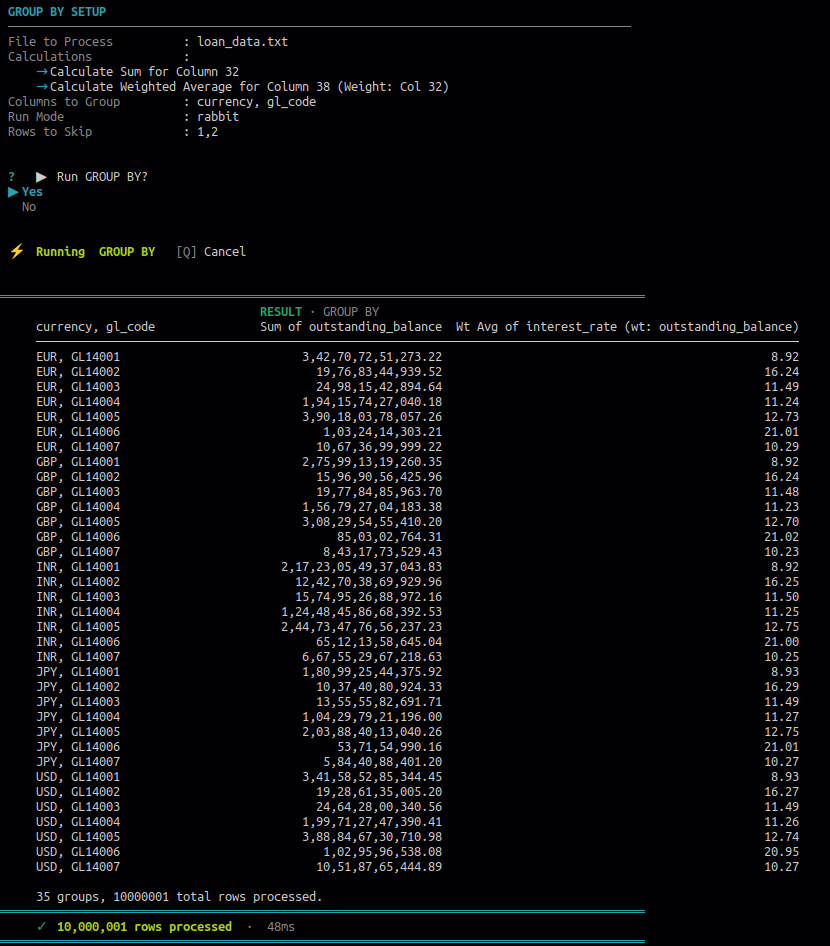
Use this to group rows by one or more columns and calculate aggregated results per group. The output can be reviewed on screen or written to a file.
Available calculations per group:
- Sum
- Average
- Weighted average
- Count
- Maximum
- Minimum
- Count distinct
9.3 Reconciliation
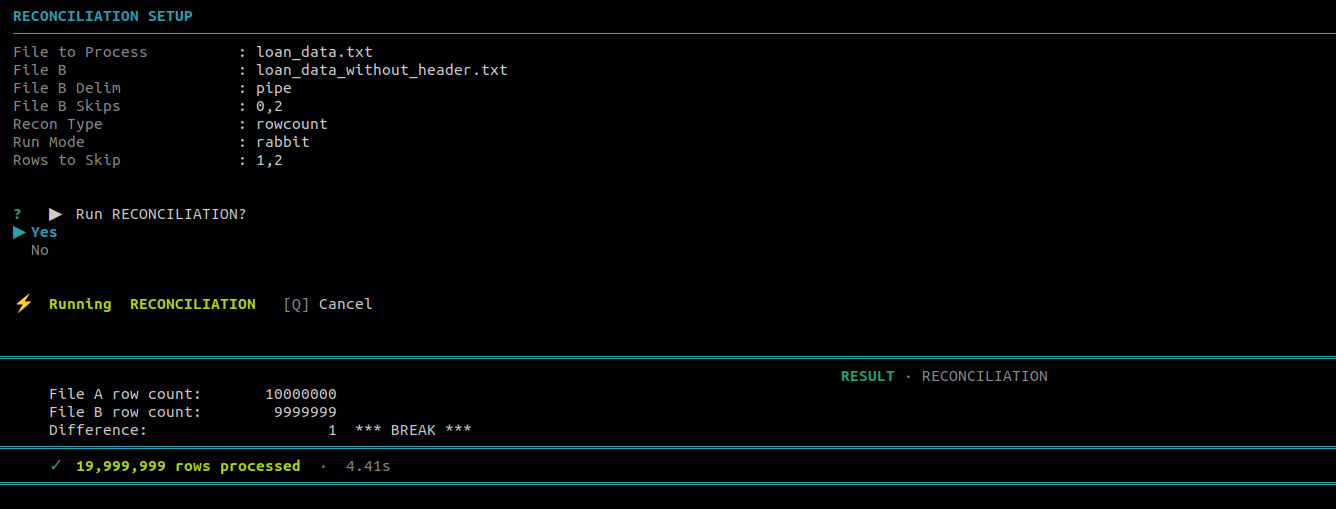
Use this to reconcile data between two files. Select a recon type to compare either the total sum of a column or the total row count across File A and File B.
| # | Option | Description |
|---|---|---|
| 1 | Sum | Compares the total of selected columns between File A and File B and reports any difference. |
| 2 | Row count | Compares the total number of rows in File A versus File B. |
10. Search & Filter
10.1 Find / Search
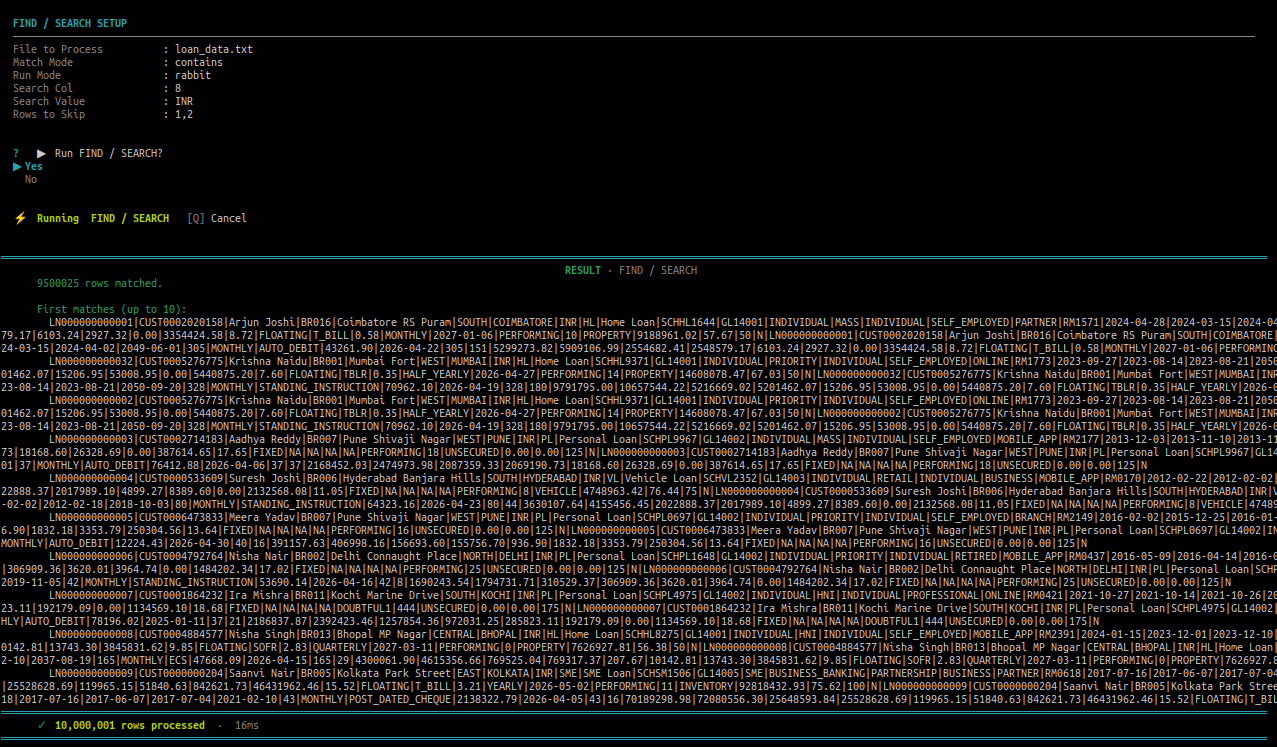
Use this to find rows based on a value in a selected column. Choose a match mode to control how the search is applied, then view results on screen or write them to a file.
| # | Option | Description |
|---|---|---|
| 1 | Exact match | Row must match the search value exactly. |
| 2 | Contains | Row contains the search value anywhere within it. |
| 3 | Starts with | Row value begins with the search string. |
| 4 | Ends with | Row value ends with the search string. |
| 5 | Regex | Row matches the provided regular expression pattern. |
| 6 | Does not match | Row does not match the provided value. |
10.2 Fetch by Date Range
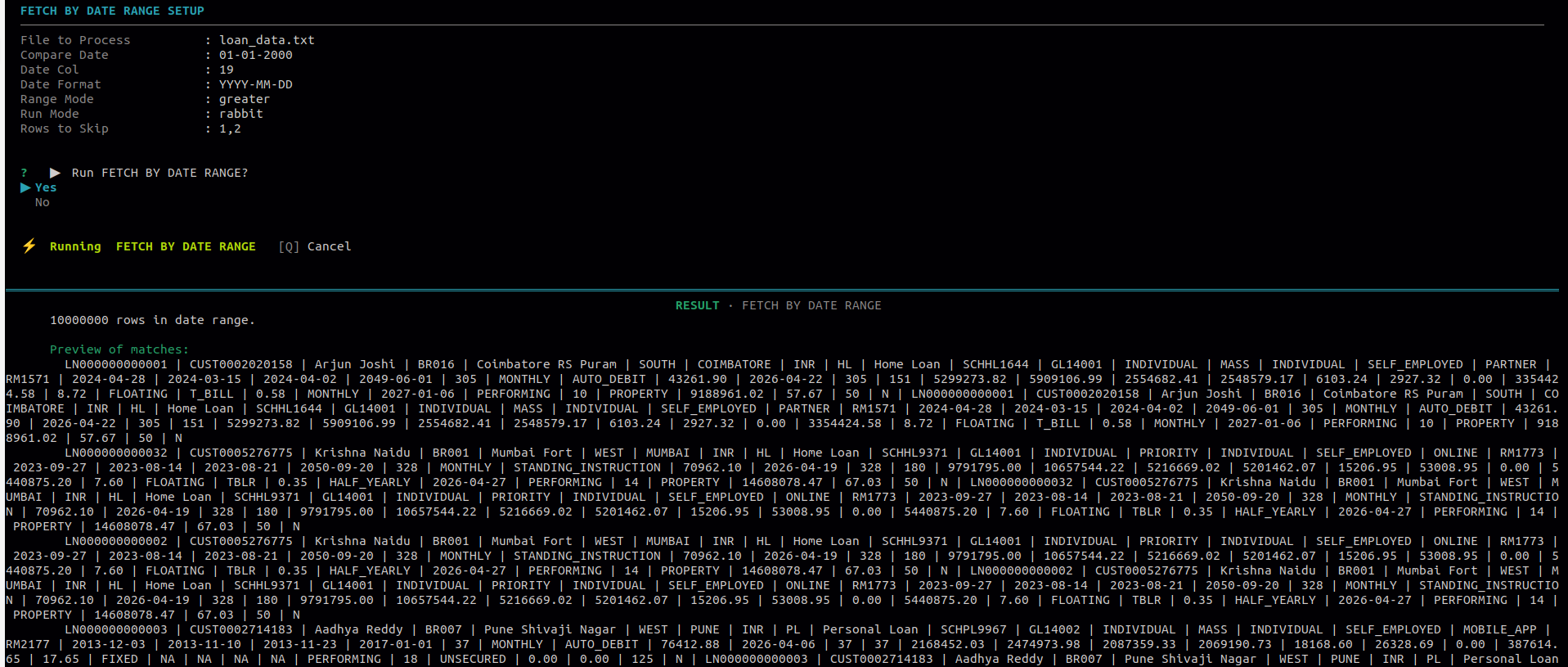
Use this to extract rows where a date column falls within a required range. You must provide the date format used in the file so the tool can parse it correctly.
| # | Option | Description |
|---|---|---|
| 1 | Between | Returns rows where the date falls between two specified dates (inclusive). |
| 2 | Greater than | Returns rows where the date is after the specified date. |
| 3 | Less than | Returns rows where the date is before the specified date. |
11. Transformation
11.1 Add Column
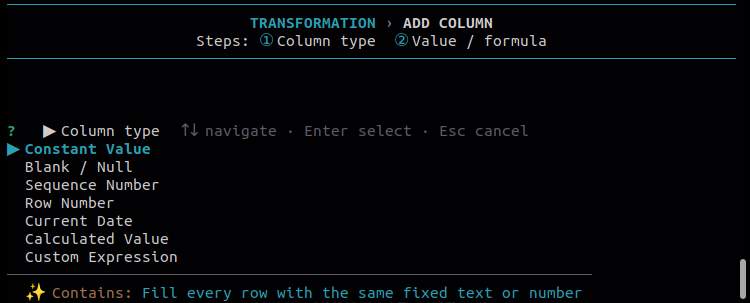
Use this to add a new column to the file. Choose the type of value the new column should contain, and the tool appends it to every row in the output.
| # | Option | Description |
|---|---|---|
| 1 | Constant value | Every row gets the same fixed value in the new column. |
| 2 | Formula / expression | The new column value is computed from an expression using existing columns. |
| 3 | Row number | The new column contains the sequential row index. |
| 4 | Current date | The new column is populated with today's date. |
11.2 Find & Replace
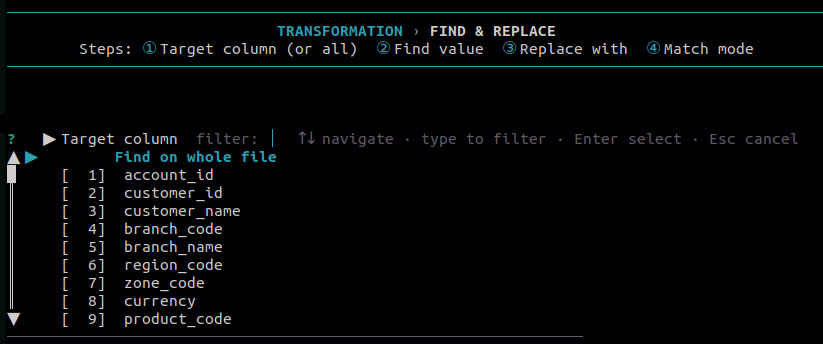
Use this to replace values in selected columns or across all columns. Choose a match mode to control how values are matched before replacement is applied.
Match modes:
- Exact — replaces only rows where the value matches exactly.
- Contains — replaces in any row where the value appears within the cell.
- Regex — replaces values matching the provided regular expression.
11.3 Remove Rows
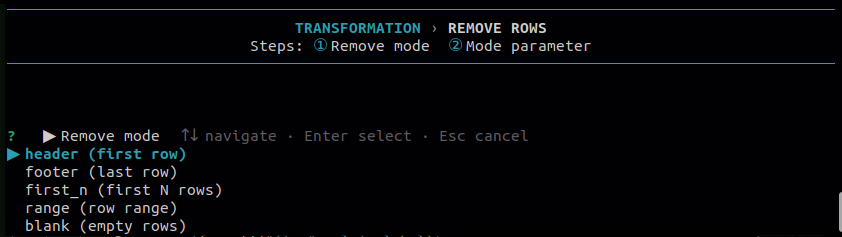
Use this to remove unwanted rows from the file before further processing. Select the mode that matches which rows you want to drop.
| # | Option | Description |
|---|---|---|
| 1 | Header | Removes the first row of the file. |
| 2 | Footer | Removes the last row of the file. |
| 3 | First N rows | Removes the first N rows as specified by the user. |
| 4 | Row range | Removes rows within a specified start and end range. |
| 5 | Blank rows | Removes all rows that are completely empty. |
11.4 Sort
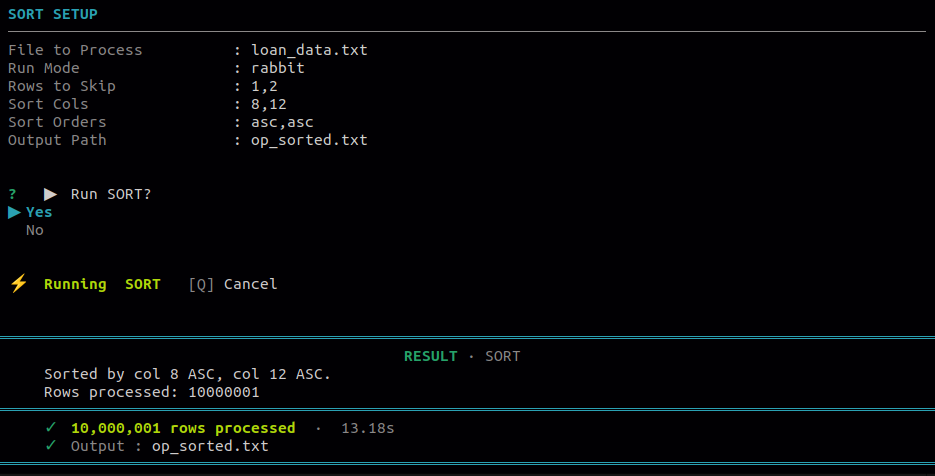
Use this to sort the file by one or more columns. For each selected column, choose ascending or descending order. Multi-column sort applies the order in the sequence you select them.
11.5 Trim / Normalize
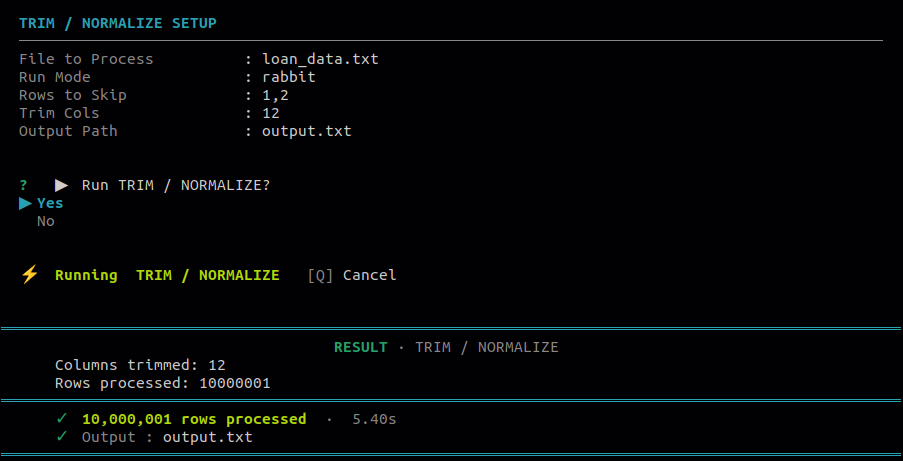
Use this to strip leading and trailing spaces from values in the file. Can be applied to specific columns or to all columns at once to clean up inconsistent spacing.
11.6 Column Select
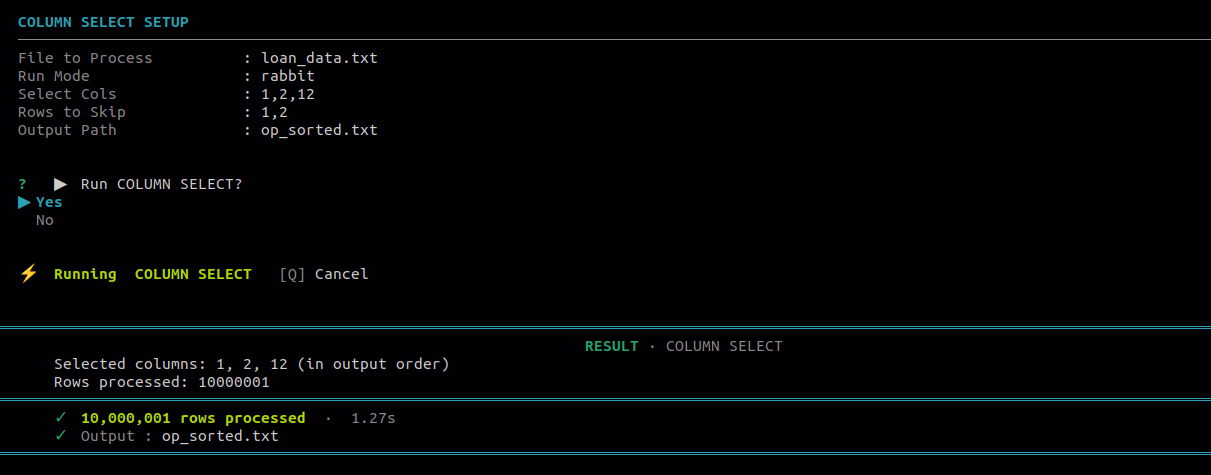
Use this to keep only the columns you need in the output file. Columns are written in the exact order you select them, allowing you to reorder as well as filter.
12. File Operations
12.1 Merge
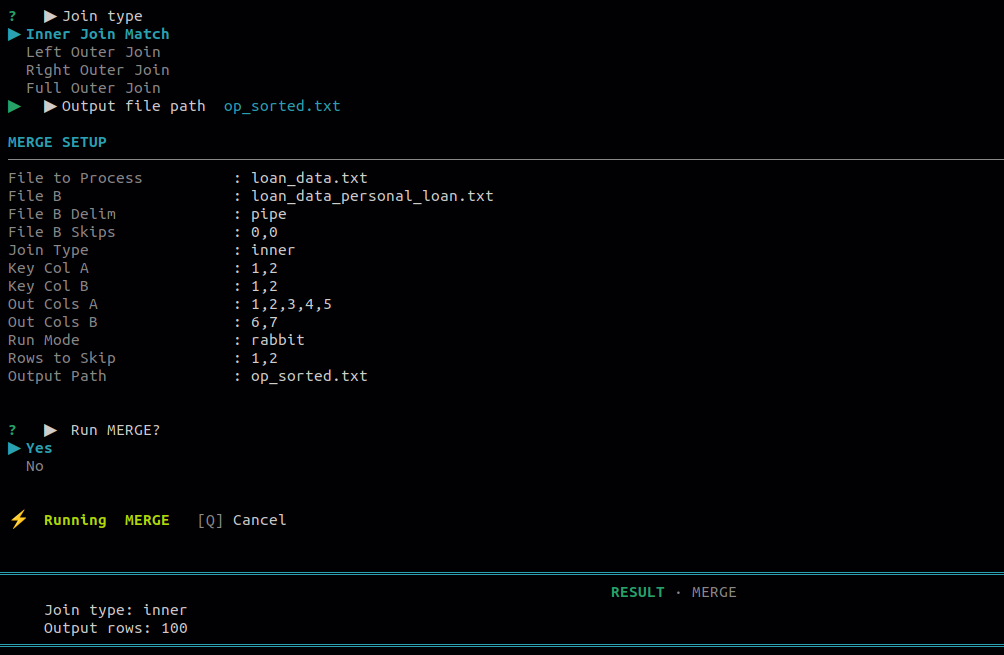
Use this to combine two files into one. Provide key columns from both files for join-based merges. The merged result is written directly to an output file.
| # | Option | Description |
|---|---|---|
| 1 | Inner join | Keeps only rows where the key exists in both File A and File B. |
| 2 | Left join | Keeps all rows from File A; matches from File B where available. |
| 3 | Right join | Keeps all rows from File B; matches from File A where available. |
| 4 | Full outer join | Keeps all rows from both files, matched where keys align. |
| 5 | Append (vertical stack) | Stacks File B rows directly below File A rows without any key matching. |
12.2 Lookup
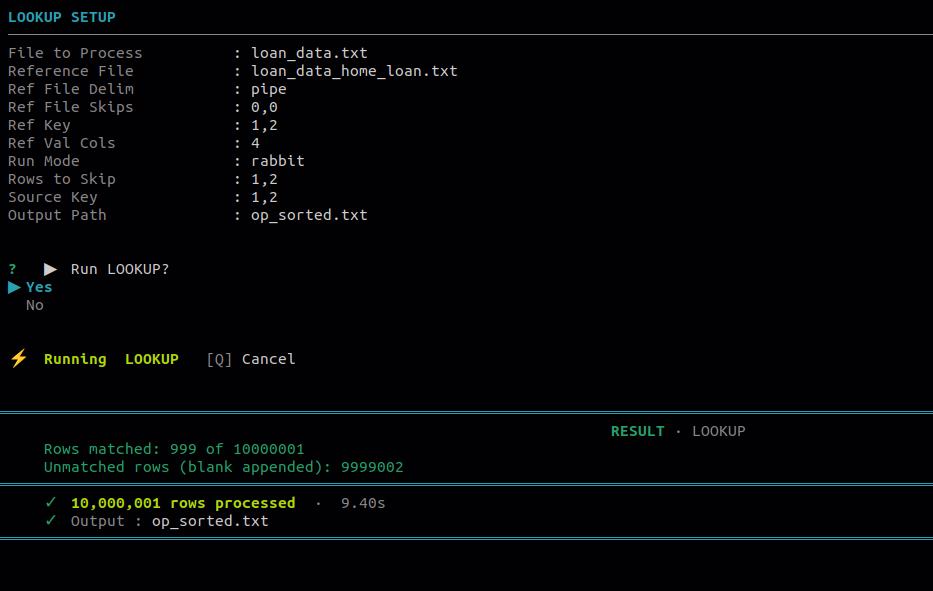
Use this to enrich the main file by appending columns from a reference file. Match is done on key columns from both files, and the selected reference value columns are appended to each matched row.
12.3 Unique
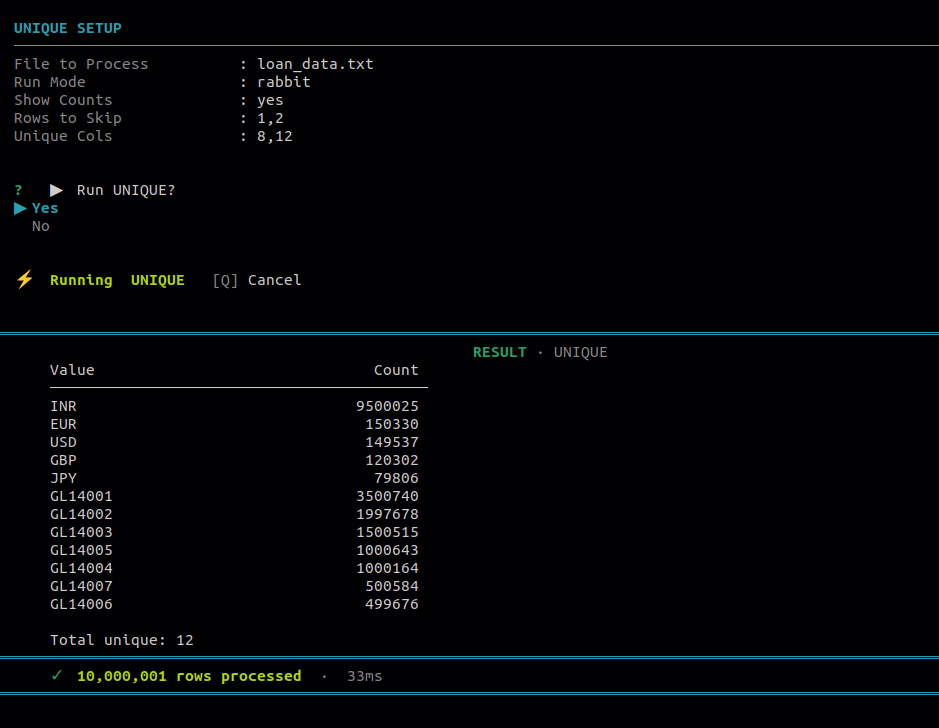
Use this to extract unique values based on selected columns. Useful for quickly seeing what distinct values exist in a column and optionally how many times each appears.
| # | Option | Description |
|---|---|---|
| 1 | Values only | Lists distinct values without occurrence counts. |
| 2 | Values with counts | Lists distinct values along with how many times each appears in the file. |
12.4 Split
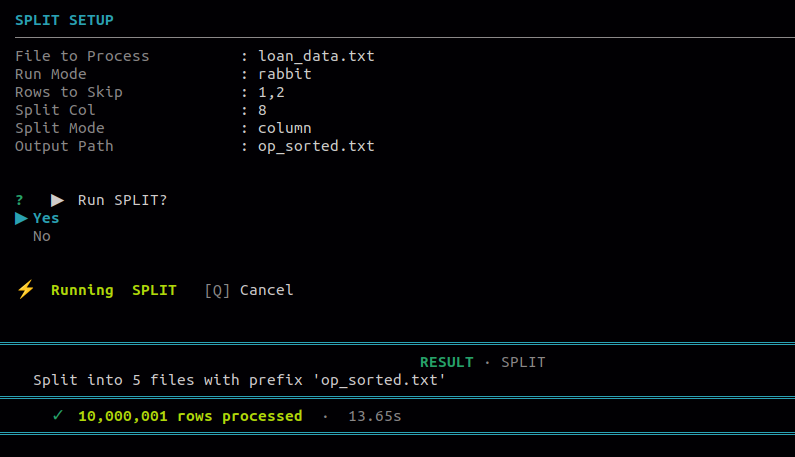
Use this to break one file into multiple output files. When splitting by column value, a separate file is created for each unique value in that column, named as output_filename_columnvalue.txt.
| # | Option | Description |
|---|---|---|
| 1 | Split by column value | Creates one output file per unique value in the selected column. Output files are named as outputfilename\<column_value>.txt. |
| 2 | Split by row count | Splits the file into chunks where each output file contains N rows as specified by the user. |
12.5 File Diff
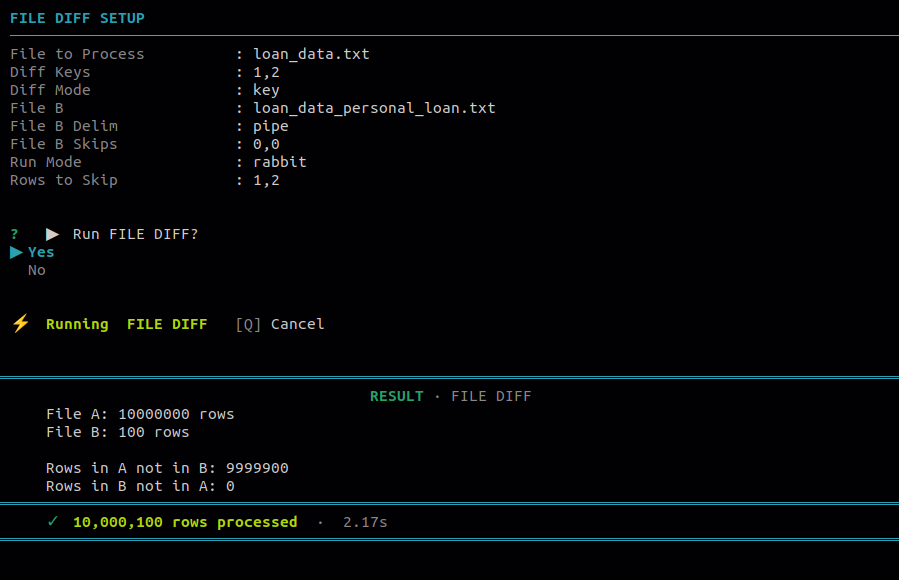
Use this to compare two files and identify what is different between them. The key column(s) must exist in both files and should represent the same kind of record, such as an ID, email, or order number.
| # | Option | Description |
|---|---|---|
| 1 | Key only | Checks which records exist in one file but are missing in the other, based on the key column(s) alone. Does not compare values. |
| 2 | Key + value comparison | Matches records by key column(s), then compares the value column(s) to find rows where the key exists in both files but the data differs. |